Let’s say you have a server that has been lovingly hand-crafted that you want to containerize.
Figuring out exactly what software is required on there and what config files need adjustment would be quite a task, but fortunately blueprint exists as a solution to that.
What I’ve done here is automate that process down to a few simple steps. Here’s how it works:
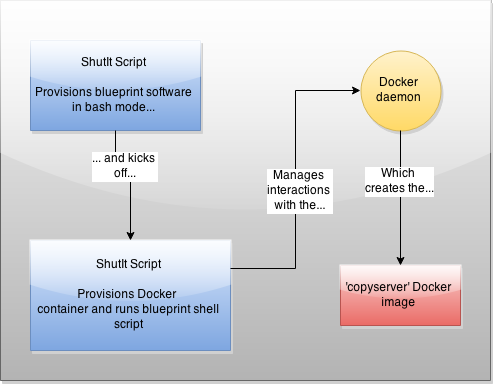
You kick off a ShutIt script (as root) that automates the bash interactions required to get a blueprint copy of your server, then this in turn kicks off another ShutIt script which creates a Docker container that provisions the container with the right stuff, then commits it. Got it? Don’t worry, it’s automated and only a few lines of bash.
There are therefore 3 main steps to getting into your container:
– Install ShutIt on the server
– Run the ‘copyserver’ ShutIt script
– Run your copyserver Docker image as a container
Step 1
Install ShutIt as root:
sudo su -
pip install shutit
The pre-requisites are python-pip, git and docker. The exact names of these in your package manager may vary slightly (eg docker-io or docker.io) depending on your distro.
You may need to make sure the docker server is running too, eg with ‘systemctl start docker’ or ‘service docker start’.
This article continues on from the previous twoposts outlining a method of provisioning Jenkins instances on demand programatically using docker-compose.
In this post we take this one step further by demonstrating how a Docker container can dynamically add itself as a client to the Jenkins server.
Overview
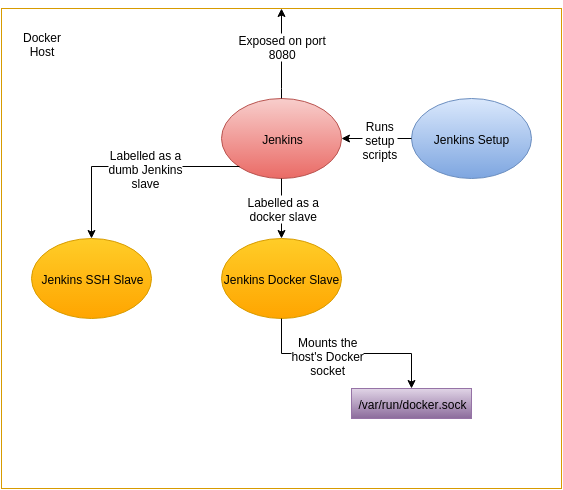
This updated diagram shows the architecture at part III
The ‘Jenkins-Swarm Docker Slave’ is new to this example. It is similar to the ‘Jenkins SSH Slave’ except that it connects itself to the Jenkins server as a slave running as a Docker container. Using this as a template you can dynamically add multiple clients to the Jenkins server under the ‘swarm’ tag.
Note: Do not confuse ‘Jenkins Swarm’ with ‘Docker Swarm’.
They are two different things: Jenkins Swarm allows clients to
dynamically attach themselves to a server and run jobs, while
Docker Swarm is a clustering solution for Docker servers.
New plugins
In addition, these new plugins have been added:
swarm – allow dynamic jenkins clients to be added via port 50000 backup – backs up configuration on demand (basic configuration set up by scripts) jenkinslint – gives advice on your jenkins setup build-timeout – allow a build timeout docker-build-publish – build and publish Docker projects to the Docker Hub greenballs – green balls for success, not blue!
This video demonstrates some of the highlights of the latest Docker version:
User namespacing setup and demo
In-memory filesystem creation
In-flight resource constraining of a CPU-intensive container
Internal-facing Docker network provisioning
Seccomp profile enforcement (updated!)
In-memory filesystems seem particularly apposite for ephemeral and I/O-intensive containers.
The user namespacing feature is neat, but be aware that you need a compatible kernel.
And from an operational perspective, the ability to dynamically constrain resources for a container is a powerful feature.
Secure?
There’s some confusion around whether these changes ‘makes Docker secure’. While user namespacing reduces the risk in one attack vector, and seccomp enforcement policies can reduce them in the other, security is not a binary attribute of any software platform.
For example, you still need to consider the content you are downloading and running, and where those components came from (and who is responsible for them!). Also, if someone has access to the docker command, they still (effectively) are a privileged user.
This article continues on from part one of this series, which looks at ‘CI as code’ using Docker to set up isolated and reproducible phoenix deployments of Jenkins deployments
Here I add dynamic Docker containers as on-demand Jenkins nodes in a Docker cloud.
Here’s a video of the stateless setup of the Docker cloud, and the job ‘docker-test’ which dynamically provisions a Docker container to run as a Jenkins slave.
What it does
Starts up Jenkins container with a server config config.xml preloaded
‘jenkinssetup’ container waits for Jenkins to be up and ready
Sets up global credentials
Updates Jenkins’ config.xml with the credentials id
Restart Jenkins and wait for jenkins to be ready
Kick off install of plugins
Periodically restart Jenkins until plugins confirmed installed
Upload job configurations
Details
The Docker plugins for Jenkins are generally poorly documented and fiddly to set up. And between them there’s quite a few, so the Docker options in a job available can get quite confusing. This took a little bit of trial and error before I could reliably get it to work.
To allow dynamic Docker provisioning, I used the standard docker plugin, mainly because it was the only one I ended up getting working with my Jenkins-in-docker-compose approach.
To get a dynamic on-demand Docker instance provisioned for every build, you have to set up a Docker cloud with the details of the Docker host to contact to spin up the container. This cloud is given a label, which you use in your job to specify that it should be run in a Docker container.
Note: If you want to recreate this you must have an opened-up Docker daemon.
See here for a great guide on this. Once that’s done you may need to change the
docker host address in the docker.xml field to point to your opened up Docker
daemon. Usually this is with the IP address outputted from ‘ip route’ in your
running containers. The default in the git repo is fine, assuming you have opened
it up on port 4243.
I don’t know about you, but I’ve always been uncomfortable with Jenkins’ apparent statefulness. You set up your Jenkins server, configure it exactly as you want it, then DON’T TOUCH IT.
For an industry apparently obsessed with ‘infrastructure/environments/whatever as code’ this is an unhappy state of affairs.
I’d set up a few Jenkins servers, thrown some away, re-set them up, and it always seemed a wasteful process, fraught with forgetfulness.
Fortunately I now have a solution. With a combination of Docker, Python’s Jenkins API modules, the Jenkins job builder Python module, and some orchestration using docker-compose, I can reproduce my Jenkins state at will from code and run it in isolated environments, improving in iterable, track-able steps.
Here’s a video of it running:
This example sets up:
a vanilla Jenkins instance via a Docker container
a simple slave node
a simple docker slave node
a container that sets up Jenkins with:
jobs
a simple echo command with no triggers
a docker echo command triggered from a github push
credentials
plugins
The code is here. I welcome contributions, improvements, suggestions and corrections.
To run it yourself, ensure you have docker-compose installed:
git clone https://github.com/ianmiell/jenkins-phoenix
cd jenkins-phoenix
git checkout tags/v1.0
./phoenix.sh